How to Export Your Android Digital Wellbeing Screen Time Data
How to Export Your Android Digital Wellbeing Screen Time Data
If you’re trying to analyze your phone usage patterns and want to export your screen time data from Android’s Digital Wellbeing feature, you’ve probably discovered that Google doesn’t provide an easy export button. After hours of research and experimentation, I found a working solution using Android Debug Bridge (ADB) that doesn’t require rooting your phone.
The Problem
Digital Wellbeing stores all your screen time data in a SQLite database, but it’s locked away in your phone’s protected system directories. Third-party apps can only access recent data (typically 2 weeks or less), and Google Takeout doesn’t include Digital Wellbeing data in its exports. The data is there, you just need the right tools to extract it.
The Solution: Using ADB to Dump Usage Statistics
The most reliable method is using Android’s built-in dumpsys command through ADB, which provides access to the same usage statistics that Digital Wellbeing uses.
Prerequisites
- Android phone with USB debugging enabled
- Windows PC (these instructions are for Windows, but the process is similar on Mac/Linux)
- USB cable to connect your phone
Step-by-Step Guide
Step 1: Install ADB (Android Debug Bridge)
- Download the SDK Platform-Tools for Windows
- Extract the ZIP file to an easy location like
C:\platform-tools - Open File Explorer and navigate to the extracted folder
- In the address bar, type
cmdand press Enter to open Command Prompt in that directory
Step 2: Enable USB Debugging on Your Phone
- Open Settings → About Phone
- Tap Build Number 7 times (this enables Developer Options)
- Go back to Settings → System → Developer Options
- Enable USB Debugging
- Connect your phone via USB
- When prompted on your phone, tap Allow to authorize the computer
Step 3: Verify ADB Connection
In the Command Prompt window, run:
adb devicesYou should see output like:
List of devices attached
1234567890ABCDEF    device
If it says “unauthorized”, check your phone for the authorization prompt and accept it.
Step 4: Export Usage Statistics
Now run this command to dump all usage statistics to a text file:
adb shell dumpsys usagestats > usagestats_full.txtThis creates a file called usagestats_full.txt in your current directory containing all the raw usage data.
Step 5: Parse the Data
The raw dump file contains a lot of information in a text format that’s hard to analyze. I created a Python script to parse it and extract useful screen time statistics.
Download the parser:
- parse_usagestats.py from the GitHub repository
- Or copy the code from the repository
Run the parser:
# Parse all data
python parse_usagestats.py

# Filter to a specific year (e.g., 2025)
python parse_usagestats.py usagestats_full.txt --year 2025
What you get:
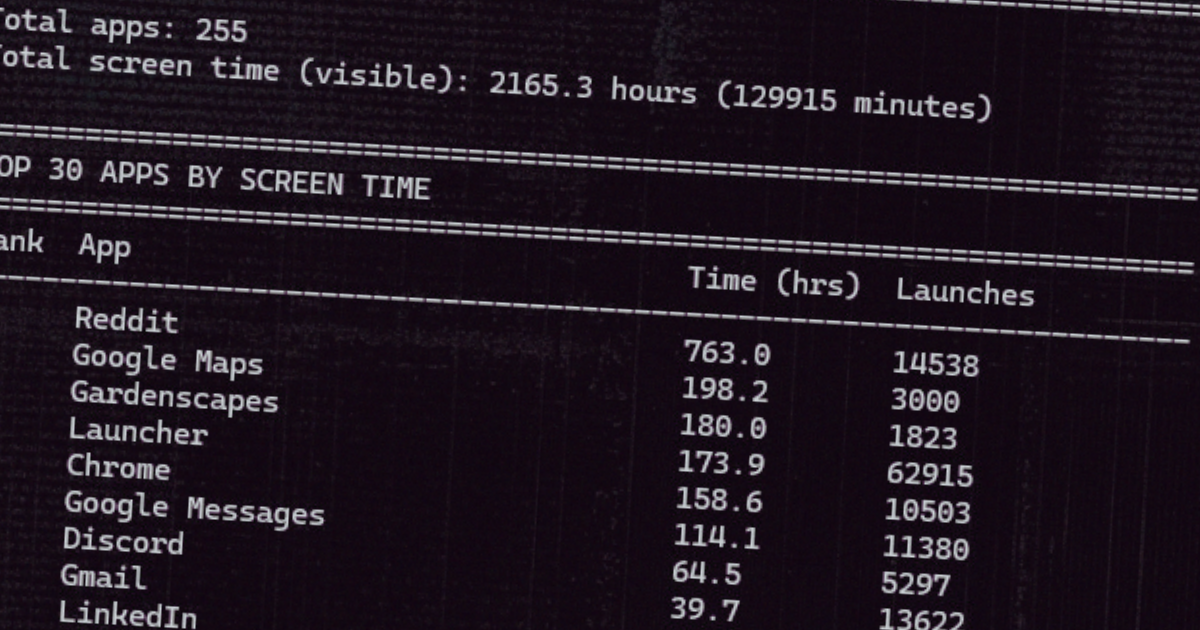
The script provides a console summary showing:
- Total number of apps used
- Total screen time in hours and minutes
- Average daily usage
- Top 30 apps ranked by screen time with launch counts
It also exports a complete CSV file (screen_time.csv or screen_time_YEAR.csv) with all apps, making it easy to:
- Import into Excel or Google Sheets
- Create custom visualizations
- Track usage patterns over time
- Compare different time periods
Example output:
Parsing Android Usage Stats...
Filtering to year: 2025
======================================================================

Total apps: 127
Total screen time (visible): 1234.5 hours (74070 minutes)
Average per day (assuming full year): 3.4 hours

======================================================================
TOP 30 APPS BY SCREEN TIME
======================================================================
Rank  App                                Time (hrs)  Launches
----------------------------------------------------------------------
1     Chrome                             245.3       1523
2     YouTube                            189.7       892
3     Reddit                             156.2       734
...

======================================================================
✓ Full data exported to screen_time_2025.csv
======================================================================
Features:
- Converts Android package names to friendly app names (Chrome instead of com.android.chrome)
- Exports to CSV for easy analysis in spreadsheets
- Filters by year to focus on specific time periods
- Shows both time used and time visible metrics
- Includes app launch counts
What You Get
The script provides:
- App-level breakdown - See exactly how much time you spent in each app
- Total screen time - Overall usage across all apps
- Last used timestamps - When you last opened each app
- CSV export - Raw data you can analyze in Excel, Python, or other tools
Alternative Method: ADB Backup (Limited Success)
I also tried using adb backup to extract the Digital Wellbeing database directly:
adb backup -f wellbeing_backup.ab com.google.android.apps.wellbeingHowever, this method often produces empty backups because many system apps (including Digital Wellbeing on Samsung devices) block backup extraction for privacy reasons. The dumpsys method is more reliable.
Tips and Troubleshooting
Customizing App Names
The script includes friendly names for popular apps, but you can easily add your own:
- Open
parse_usagestats.pyin a text editor - Find the
get_app_friendly_name()function (around line 50) - Add your apps to the
name_mapdictionary:
name_map = {
    'com.your.package.name': 'Your App Name',
    'com.example.myapp': 'My Custom App',
    # ... rest of the mappings
}
To find package names for apps you want to add, check the CSV output file or the console output - they show both the package name and the friendly name.
Common Issues
- No devices shown? Make sure USB debugging is enabled and you’ve authorized the computer on your phone
- Permission denied? The
dumpsyscommand doesn’t require root access, but some manufacturers may limit it - Empty data? Try running the command again, sometimes the first dump is incomplete
- Want historical data? The
usagestatsdump includes data from as far back as Android retains it (typically several weeks to months)
Why This Matters
For anyone trying to understand and improve their phone usage habits, having access to raw data is crucial. I discovered through meticulous time tracking that I spent over 1,100 hours on social media in 2025, with almost half of my mornings starting with doomscrolling. This data export method was essential for that analysis.
Whether you’re:
- Tracking your digital wellness journey
- Analyzing productivity patterns
- Reducing screen time and doomscrolling
- Creating visualizations of your phone habits
This method gives you the data you need without requiring root access or third-party apps that can’t access historical information.
Next Steps
Once you have your data exported, you can:
- Import the CSV file into Excel or Google Sheets for visualization
- Use Python’s pandas library for deeper analysis
- Track changes over time by running the export regularly
- Compare different time periods to measure progress
Resources
- GitHub Repository - Complete code and documentation
- Android Developer Documentation - Platform Tools download
- ADB Commands Reference - Official ADB documentation
Contributing
Found this useful? The code is open source on GitHub. Feel free to:
- Submit improvements or bug fixes
- Add more app name mappings
- Share your own analysis techniques
- Report issues
Star the repository: github.com/dsgreen85/Android-Usagestats-Parser
This guide was created after extensive trial and error extracting my own 2025 screen time data for analysis. You can read about what I discovered in my 2025 time tracking analysis, which revealed over 1,100 hours spent on social media. If you found this technical guide helpful or have improvements to suggest, feel free to contribute to the GitHub repository.

David Green
Marketing operations professional exploring the intersection of data, technology, and human behavior.